
How to Integrate UPI QR Code in HTML/JS Website (Simple Guide)
Learn how to accept zero-fee UPI payments on your website by integrating a dynamic UPI QR code generator using plain HTML, CSS, and JavaScript.
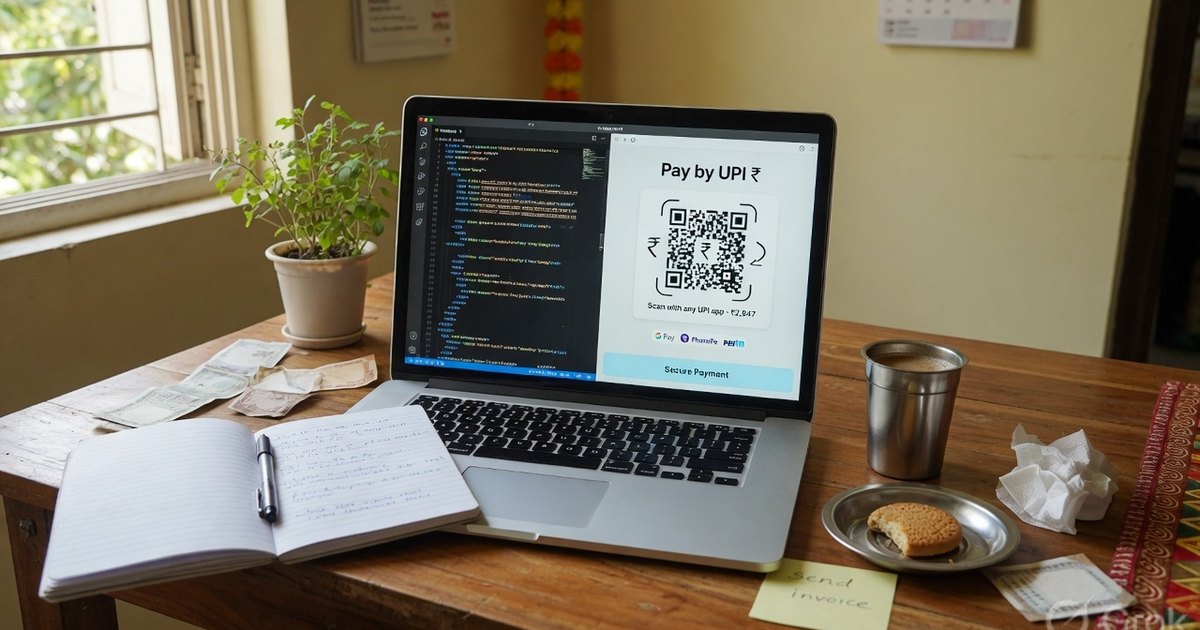
With rising payment gateway charges and setup delays, many static websites, local store pages, and freelance portfolios want a simpler way to accept payments. Since UPI (Unified Payments Interface) is completely free and commission-free, displaying a UPI QR code on your website is an excellent alternative to complex integrations.
In this guide, we will walk you through how to integrate a dynamic, payment-ready UPI QR code directly into a plain HTML/JS page.
1. Understanding the UPI Deep Linking Specification
The Unified Payments Interface uses a standardized URI format. When scanned by a UPI app (like GPay, PhonePe, or Paytm) or clicked on a mobile device, this URL launches the payment application immediately with pre-filled fields.
The basic schema looks like this:
upi://pay?pa=yourname@bank&pn=PayeeName&am=Amount&cu=INR&tn=TransactionNote
Key parameters you can use:
pa(Payee Address): The destination UPI ID (VPA) where funds will be sent (e.g.merchant@okaxis).pn(Payee Name): The legal or trade name of the account holder (e.g.Acme Corp).am(Amount): The exact amount to charge (optional, leave blank to let the customer enter it).cu(Currency): Always set toINR.tn(Transaction Note): A brief message or invoice reference (e.g.Order1094).
2. Setting Up the HTML Structure
To display the QR code, we’ll create a clean user interface. We’ll use a free, lightweight client-side library called QRious to render the QR code inside an HTML5 <canvas> element.
Here is the basic HTML template:
<!DOCTYPE html>
<html lang="en">
<head>
    <meta charset="UTF-8">
    <meta name="viewport" content="width=device-width, initial-scale=1.0">
    <title>Pay via UPI</title>
    <!-- Include QRious Library via CDN -->
    <script src="https://cdnjs.cloudflare.com/ajax/libs/qrious/4.0.2/qrious.min.js"></script>
    <style>
        body {
            font-family: 'Segoe UI', Tahoma, Geneva, Verdana, sans-serif;
            background-color: #f7f7f7;
            display: flex;
            justify-content: center;
            align-items: center;
            height: 100vh;
            margin: 0;
        }
        .payment-box {
            background-color: #fff;
            padding: 30px;
            border-radius: 16px;
            box-shadow: 0 10px 30px rgba(0,0,0,0.08);
            text-align: center;
            max-width: 350px;
            width: 100%;
        }
        .qr-container {
            margin: 20px 0;
        }
        canvas {
            border: 1px solid #eee;
            padding: 10px;
            background: #fff;
            border-radius: 8px;
        }
        .pay-btn {
            display: inline-block;
            background-color: #00703c;
            color: #fff;
            padding: 12px 24px;
            text-decoration: none;
            font-weight: bold;
            border-radius: 8px;
            margin-top: 15px;
            width: calc(100% - 48px);
        }
    </style>
</head>
<body>

<div class="payment-box">
    <h2>Scan to Pay</h2>
    <p>Please pay <strong>₹450</strong> using any UPI app.</p>

    <div class="qr-container">
        <!-- QR Code will render here -->
        <canvas id="upi-qr"></canvas>
    </div>

    <!-- Mobile-only payment button -->
    <a href="#" id="upi-link" class="pay-btn">Open in UPI App</a>
</div>

</body>
</html>
3. Adding the JavaScript Logic
Now, let’s write the JavaScript code to assemble the UPI string, initialize the QR code generator, and set the link for mobile users (so they can click to pay directly instead of scanning).
Add this script block right before the closing </body> tag:
<script>
    // 1. Define payment details
    const payeeVPA = "merchant@okaxis"; // Replace with your UPI ID
    const payeeName = "Acme Store";     // Replace with your business name
    const amount = "450.00";             // Replace with your invoice amount
    const note = "Web Order #1042";     // Note or reference ID

    // 2. Build the standard UPI URI string
    const upiString = `upi://pay?pa=${encodeURIComponent(payeeVPA)}&pn=${encodeURIComponent(payeeName)}&am=${amount}&cu=INR&tn=${encodeURIComponent(note)}`;

    // 3. Generate QR Code using QRious
    const qr = new QRious({
        element: document.getElementById('upi-qr'),
        value: upiString,
        size: 220,
        level: 'H' // High error correction level for better scanning
    });

    // 4. Update the mobile-only payment button href
    const upiLinkElement = document.getElementById('upi-link');
    upiLinkElement.setAttribute('href', upiString);

    // Optional: Hide the button on desktop screens if desired
    if (!/Android|iPhone|iPad|iPod/i.test(navigator.userAgent)) {
        upiLinkElement.innerHTML = "Scan the QR Code to Pay";
        upiLinkElement.style.pointerEvents = "none";
        upiLinkElement.style.backgroundColor = "#cccccc";
    }
</script>
4. Key Limitations & Considerations
While this method is simple, direct, and eliminates gateway charges, keep the following details in mind:
- No Automated Webhooks: Because this transaction is entirely peer-to-peer (P2P) directly between the customer’s app and your bank, your website will not receive a server callback (webhook) when the payment is completed. You must manually verify the payment by checking your bank statements or using a Soundbox.
- Maximum Daily Limit: Normal P2P transactions have a daily limit (typically ₹1,00,000 in India depending on the bank). If you run a high-volume merchant store, look into registering as a merchant to obtain a Merchant VPA (
paparameter starting with merchant indicators) which supports higher limits. - Security & Spoofing: Make sure to render the canvas on a secure page (HTTPS) to prevent third parties from inspecting or spoofing your UPI ID.
If you prefer to generate standard UPI posters, desk cards, or custom designs without writing any code, feel free to use the Pro UPI QR Generator tool.
Kunal Siyag
Founder, Pro UPI QR
Founder of Pro UPI QR. Builds the generators and calculators, writes the merchant guides, and cites NPCI, RBI, and bank sources instead of inventing a research team.