
How to Create a UPI Payment Link to Send Over WhatsApp
A quick tutorial on generating and sharing standard UPI payment links and QR codes to request payments from customers or friends on WhatsApp.
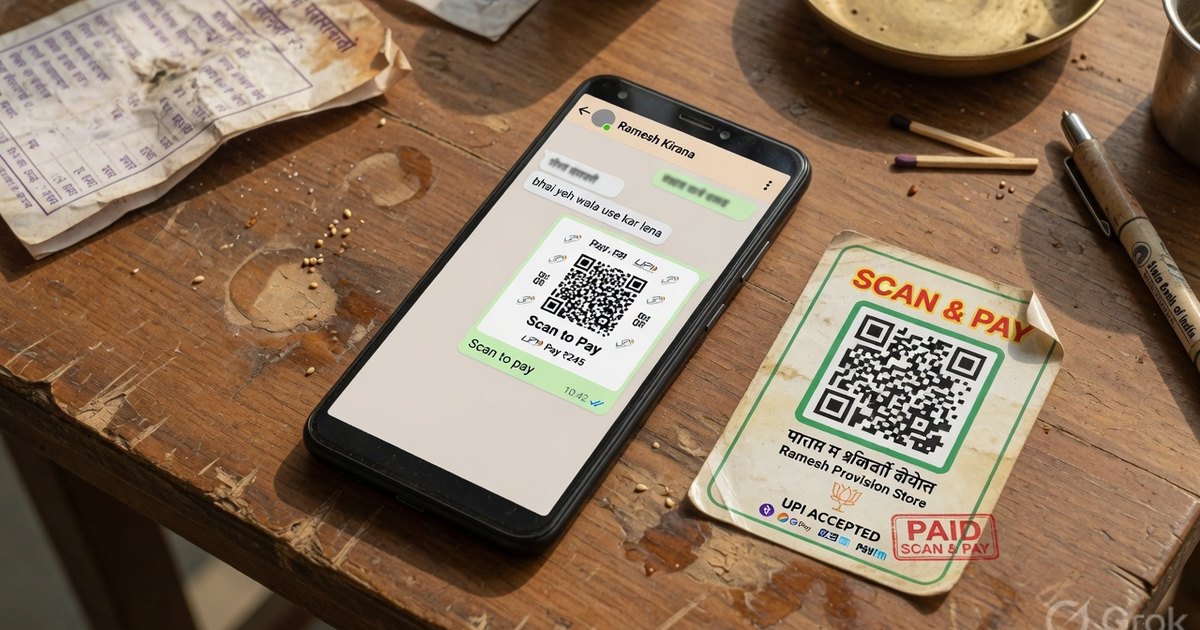
Many freelancers, home bakers, local service providers, and business owners collect orders directly through WhatsApp chat.
When it comes to billing, typing out bank account details (Account Number, IFSC, Bank Name) or copy-pasting your UPI ID is slow and prone to customer spelling errors.
A cleaner, faster solution is sending a direct UPI Payment Link or a payment card. When the customer clicks the link on their mobile phone, it automatically opens their preferred payment app (Google Pay, PhonePe, Paytm, or BHIM) with your name and VPA pre-filled.
In this guide, we’ll show you how to generate these links for free.
What is a UPI Payment Link?
Under the hood, a UPI link is a standard deep-link URI schema defined by the National Payments Corporation of India (NPCI). The schema looks like this:
upi://pay?pa=yourvpa@bank&pn=YourName&am=Amount&cu=INR
Where:
pa= Payee Address (your UPI ID)pn= Payee Name (your bank registered name)am= Amount (optional)cu= Currency (INR)
When clicked on a smartphone, the mobile operating system recognizes the upi:// protocol and forwards it to any installed UPI application.
Method 1: Generate a Shareable Payment Link Online (Easiest)
If you want a clean, verified link or a QR poster to share on WhatsApp:
- Visit Pro UPI QR Generator.
- Enter your Payee Name and UPI ID.
- (Optional) Enter the specific invoice amount and a short note (e.g., “Invoice #402”).
- Click Generate UPI QR.
- Once generated, click the Share / Copy Link button.
- Paste the copied link directly into your WhatsApp chat with the customer.
Method 2: Creating a Manual UPI Link
If you want to manually type a link inside WhatsApp for quick billing, you can format it using standard browser URL redirects.
However, since WhatsApp doesn’t always render raw upi:// schemes as clickable links in all operating systems, you can use a universal web helper redirect:
https://upiqr.in/pay?pa=yourvpa@bank&pn=MerchantName&am=150
Replace:
yourvpa@bankwith your actual UPI ID.MerchantNamewith your name (use%20for spaces, likeJohn%20Doe).150with the billing amount.
Best Practices for Sharing Payment Links on WhatsApp
To maximize trust and get paid faster, follow these simple tips:
1. Send the Link with an Image
A text-only link can sometimes look suspicious. Generate a custom Pro UPI QR Card, download the PNG, and send the image along with the payment link. This way, the customer can either click the link on their phone or scan the image if they are using WhatsApp Web on a laptop.
2. Include the Invoice Details
Always specify what the payment is for. For example:
“Hi Raj, here is your payment link for the Custom Cake order. Click below to pay ₹1,500 securely via GPay/PhonePe: [Your Link]”
3. Ask for Confirmation
Request the customer to reply with a screenshot of the transaction receipt once completed. This helps you track payments in your bank statement.
Summary
Creating a UPI link for WhatsApp is one of the easiest ways to modernise your customer support chat. It takes less than a minute to generate, reduces the hassle of sharing bank coordinates, and guarantees that payments go to the correct account without errors.
Generate a clean WhatsApp Payment Link now →
Related Guides
- Payment reminder message templates — what to send when the link goes ignored
- Quotation vs estimate vs invoice vs receipt — which document belongs at each stage
- Rent receipt format for HRA exemption — for tenants and landlords
- Browse all free merchant tools
Kunal Siyag
Founder, Pro UPI QR
Founder of Pro UPI QR. Builds the generators and calculators, writes the merchant guides, and cites NPCI, RBI, and bank sources instead of inventing a research team.
Related Articles
How to Write a Payment Reminder Message (+ Templates)
Copy-paste payment reminder templates for WhatsApp, SMS, and email — a polite day-1-to-day-30 escalation ladder that gets overdue invoices settled faster.
How to Add UPI QR to Instagram & WhatsApp Status
Step-by-step guide to share your payment QR code on Instagram bio, WhatsApp Status, and social media for instant money collection.
Extract UPI ID From a QR Code Online
Upload a UPI QR to extract the VPA, payee name, and amount in your browser. Decode PhonePe, GPay, Paytm, or BHIM codes without sending the image to a server.
Related tools
Four siblings in this topic — the full inventory lives on the hub.
PhonePe QR Generator
Create a PhonePe-compatible UPI QR with optional amount and note.
Google Pay QR Generator
Build a GPay-friendly standee customers can scan from any UPI app.
Paytm QR Generator
Generate a Paytm-compatible payment QR for shops and local businesses.
BHIM UPI QR Generator
Generate standard BHIM UPI QR codes for instant direct bank payments.