
How to Generate a UPI QR Code with a Pre-Filled Amount
Learn how to build dynamic UPI QR codes containing preset payment amounts and notes, ideal for digital billing, tickets, and checkout counters.
A standard static UPI QR code allows the customer to scan and manually enter any amount they wish. While useful, it leaves room for human error—such as entering a wrong digit, underpaying, or forgetting to pay the full invoice value.
Generating a dynamic UPI QR code with a pre-filled amount locks the payment screen, ensuring the customer scans and pays the exact specified amount instantly. This is the same mechanism used by large supermarket cashiers and online checkouts to prevent payment mismatches.
In this guide, we will dive deep into how pre-filled UPI QR codes work, explore the underlying NPCI protocol parameters, and walk through step-by-step implementation for various billing workflows.
How it Works: The UPI URL Scheme
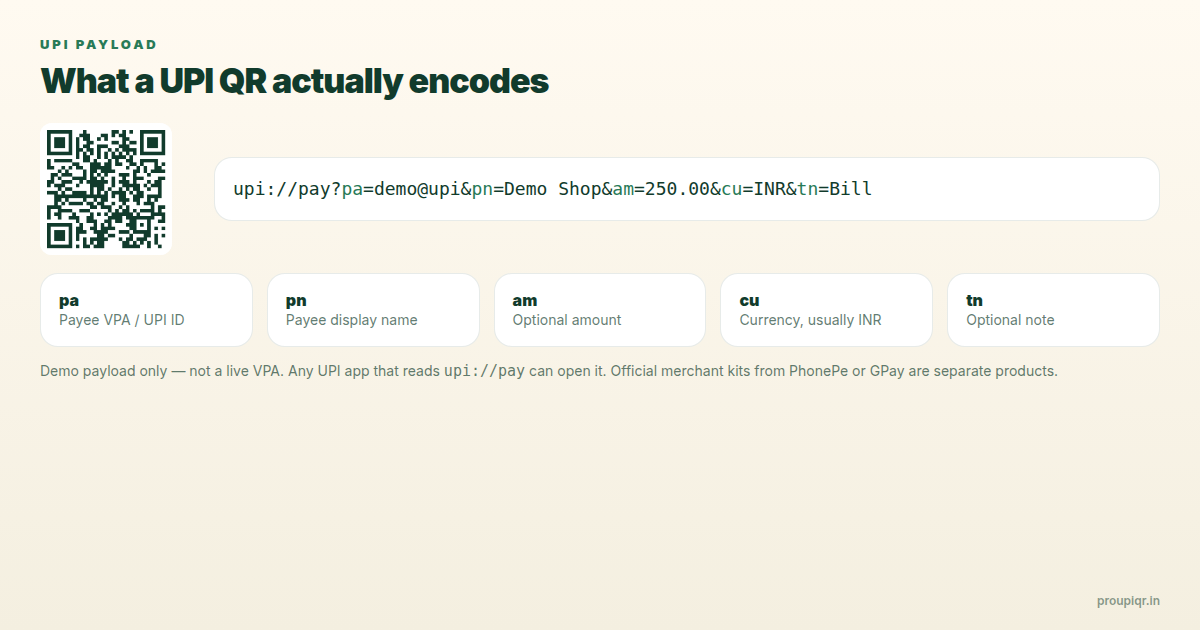
am field locks the amount. Leave it out for an open-amount counter QR.The technology behind pre-filled amounts is based on standard URL query parameters. By appending the am (amount) and tn (transaction note) variables to your base payment schema, the scanner automatically configures the fields on the customer’s phone.
The standardized format follows this exact structure:
upi://pay?pa=shop@bank&pn=ShopName&am=450&cu=INR&tn=Invoice405
Let’s break down the query parameters:
pa(Payment Address): The recipient’s virtual payment address / VPA (e.g.shopname@okaxis).pn(Payee Name): The display name of the recipient business or individual.am(Amount): The requested transaction value. It supports decimal values (e.g.120.50).cu(Currency): The currency code, which must always beINRfor Indian domestic transactions.tn(Transaction Note): The reference description visible on the user’s scan screen.
When scanned, this code automatically opens GPay, Paytm, or PhonePe, locks the payee to “ShopName”, locks the amount to “₹450”, and adds the note “Invoice405”. The customer only needs to tap ‘Pay’ and enter their 4-digit or 6-digit UPI PIN to authorize the transaction.
Comparison: Static QR vs. Pre-Filled (Dynamic) QR
Depending on your store checkout layout, choosing the right QR structure is key to customer throughput.
| Capability | Static UPI QR (No Amount) | Pre-Filled UPI QR (Fixed Amount) |
|---|---|---|
| Customer Input | Customer manually enters the billing amount. | Amount is pre-filled and locked; cannot be edited. |
| Error Rate | High (customer may make typing errors or transfer wrong amounts). | 0% (exact amount is requested directly). |
| Reconciliation | Difficult (matching random payments to specific invoices). | Easy (the transaction note or amount identifies the invoice). |
| Best For | Casual counter tips, donation boxes, street vendors. | Ticket counters, specific product checkouts, invoices. |
| Scan Limitations | None (can be scanned by unlimited users). | None (can be printed or displayed on invoice templates). |
Practical Business Use Cases
Pre-filling UPI payment amounts is highly beneficial across several retail and digital industries:
1. Invoicing & B2B Billings
Instead of sending raw bank details, email or message your clients a PDF invoice containing a custom pre-filled QR code. When they open the PDF on their screen, they can scan the QR with their phone to settle the exact invoice amount instantly.
2. Event Ticket Booths & Registrations
If you are hosting a workshop, conference, or charity run, print posters for each ticket category (e.g., “General Admission: ₹500” and “VIP Pass: ₹1,500”). Customers can scan the respective poster and complete the transaction without asking the coordinator for price verification.
3. Quick-Service Restaurants & Cafes
For fast-moving items or combo deals (e.g. “Combo Meal - ₹199”), place a table tent card showing the pre-filled amount. Customers scan and pay directly from their table, reducing cashier wait times.
4. School & Tuition Centers
Generate recurring fee cards for students (e.g. “July Term Fee - ₹3,500”). Parents can pay from home by scanning the digital image, with the transaction note containing the student’s roll number.
Step-by-Step Generator Guide
- Go to the Pro UPI QR Generator.
- Enter your Payee Name and UPI ID / VPA.
- Under the Amount field, enter the exact price you wish to collect (e.g.,
250). - In the Note field, enter a brief description (e.g.,
Order #908). - Choose a custom template layout from the options (e.g., Shop Standee, Table Card, or Minimalist Card).
- Click Generate Poster.
- Download the high-quality PNG poster for physical printing or share the link digitally.
Frequently Asked Questions
Q1. Can customers edit the pre-filled amount after scanning?
On standard UPI apps (like Google Pay, PhonePe, Paytm, and BHIM), if a merchant UPI ID (business VPA) is used with the am parameter, the amount field is locked and cannot be edited by the customer. However, for personal peer-to-peer (P2P) VPAs, some banking apps may allow the sender to modify the amount before paying.
Q2. Is there an additional fee for locking the transaction amount?
No. Appending the amount parameter to the UPI link is a built-in feature of the NPCI network protocol. Our generator does not charge any processing fees, platform fees, or transaction commissions. You receive the full payment amount directly into your bank account.
Q3. Can I pre-fill the transaction note without setting an amount?
Yes. You can leave the amount field empty and only fill in the note field. In this setup, the scanner will pre-fill the payee name, UPI ID, and note, but leave the amount field open for the customer to fill in manually. This is ideal for tips, donations, and open bill settlements.
Ready to Generate Your QR?
Stop dealing with payment reconciliation problems. Design and download your custom UPI QR Code with Amount now.
Kunal Siyag
Founder, Pro UPI QR
Founder of Pro UPI QR. Builds the generators and calculators, writes the merchant guides, and cites NPCI, RBI, and bank sources instead of inventing a research team.
Related Articles
How to Generate UPI QR Codes for Multiple Staff Counters
Run two or more billing counters with separate UPI QRs, transaction notes, or VPAs for easier daily reconciliation.
Static vs Dynamic UPI QR Code: What's the Difference?
Understand static and dynamic UPI QR codes, when to use each for shops and billing, and how pre-filled amount QRs reduce payment errors.
UPI Payment Receipt Generator for Shops
Issue a real payment receipt after a UPI credit — with UTR, amount, and date. Not a fake PhonePe or GPay screenshot. Free browser PDF for shops and freelancers.
Related tools
Four siblings in this topic — the full inventory lives on the hub.
PhonePe QR Generator
Create a PhonePe-compatible UPI QR with optional amount and note.
Google Pay QR Generator
Build a GPay-friendly standee customers can scan from any UPI app.
Paytm QR Generator
Generate a Paytm-compatible payment QR for shops and local businesses.
BHIM UPI QR Generator
Generate standard BHIM UPI QR codes for instant direct bank payments.