
How to Set Up and Activate Google Pay for Business
Register Google Pay for Business, complete PAN KYC, download the merchant QR, and learn how an official GPay QR differs from a compatible UPI print.
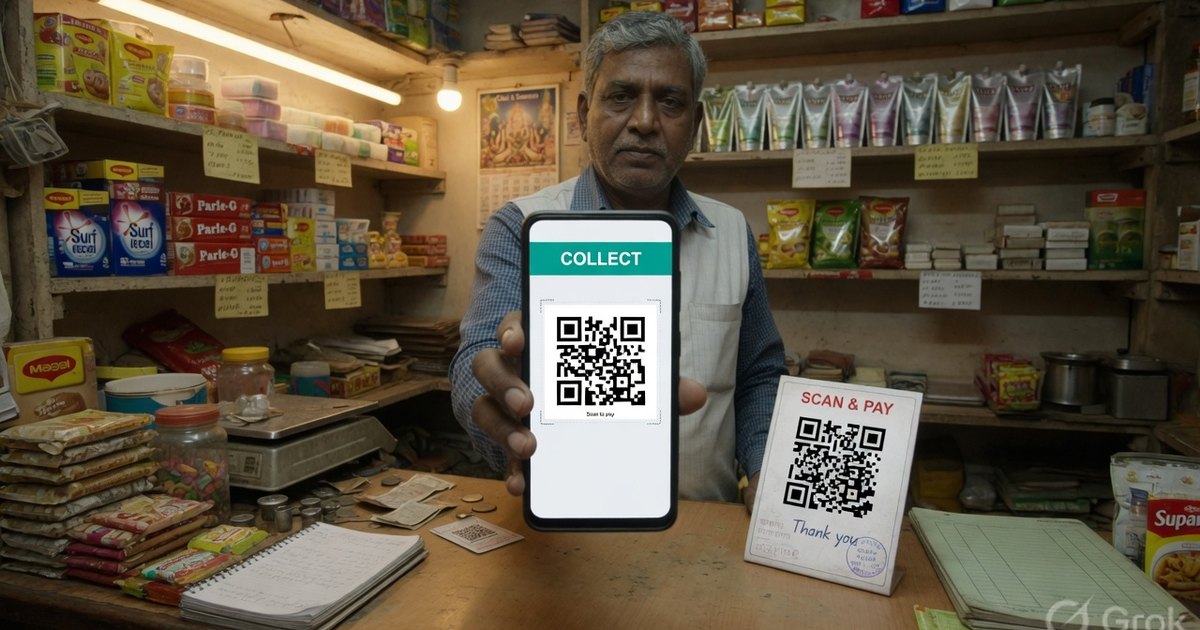
Install Google Pay for Business, sign in with a Google account, enter shop name and map pin, then link the bank account and complete PAN KYC. GPay often posts a ₹1 validation credit. After that you can download the merchant QR from the app. A poster generated here encodes the same VPA and is not an official Google merchant kit.
Last reviewed 27 August 2026. Confirm current GPay Business menus in the app.
Official GPay Business QR vs a compatible print
| Google Pay for Business QR | Compatible UPI QR from this site | |
|---|---|---|
| Source | KYC inside GPay for Business | Your existing @ok… VPA in the Google Pay QR generator |
| Who can pay | Any UPI app | Any UPI app |
| Maps / merchant profile | Can appear on Google Maps once the profile is live | No Maps listing from the print |
| Dashboard | GPay Business analytics | Bank SMS / passbook |
| Design | GPay download | You choose template, size, reprint |
Use the official app if you want Maps discovery and GPay’s merchant tools. Use a compatible print if you already have a VPA and need a counter card this afternoon.
Create a Google Pay compatible QR →
Activation steps
- Install Google Pay for Business (Play Store / App Store) — not only consumer GPay.
- Sign in with the Google account that should own the merchant profile.
- Choose set up as a business. Enter the legal / shop name, category, and the map pin for the storefront.
- Link the bank account that should receive settlements.
- Complete KYC: PAN is standard; the app may ask for a PAN photo. Aadhaar is commonly used as address proof.
- GPay may send a ₹1 validation deposit. Wait for it before you assume the account is live.
- Open the QR tab, download the image, and test-scan from a second phone.
GST is not required below the GST threshold. Add GSTIN later if the app requests it or if your turnover requires registration.
Fetch the QR and print it properly
Do not screenshot a dim phone screen and send that JPEG to a printer. Download from the QR tab, or paste the VPA into the Google Pay QR generator for a print-ready PNG/PDF.
Full print spec (sizes, matte vs glossy, test protocol): How to print a GPay QR code.
Charges
Bank-to-bank UPI is 0% MDR. RuPay credit card on UPI above ₹2,000 may carry interchange — see RuPay CC MDR. Voice alerts in GPay for Business are a software toggle; hardware soundboxes are a separate product if Google or a partner offers them in your city.
Frequently asked questions
Q1. Can PhonePe customers pay my GPay Business QR?
Yes. UPI QRs are interoperable. The customer’s app talks to NPCI, not to a Google-only rail.
Q2. Is the generator on this site the official GPay merchant QR?
No. It encodes the VPA you type. You do not get Maps listing or GPay Business analytics from that file. It is the right tool when you need a branded standee or sticker sheet today.
Q3. Do I need GST for GPay Business?
Not for a small shop below the GST threshold. PAN and a bank account are the usual gates. GSTIN can be added when you have it.
Q4. The ₹1 validation never arrived. What now?
Check the account number and IFSC, wait a few hours, then use in-app help. Do not keep submitting new bank accounts in a loop — that retriggers KYC.
Next: print a shop standee · GPay vs PhonePe vs Paytm · UPI error codes
Kunal Siyag
Founder, Pro UPI QR
Founder of Pro UPI QR. Builds the generators and calculators, writes the merchant guides, and cites NPCI, RBI, and bank sources instead of inventing a research team.
Related Articles
P2M Meaning in Banking and UPI Payments
P2M is person-to-merchant UPI. P2P is person-to-person. Learn the difference, refund TAT, MDR, and when a shop should use a merchant VPA instead of a personal UPI ID.
PhonePe QR Sticker: Print Free or Order
Print a PhonePe-compatible UPI sticker at home for free, or order the official PhonePe Business sticker. Sizes, vinyl vs paper, and when each option makes sense.
How to Activate PhonePe Business QR Code (Free Standee Setup)
Step-by-step guide to activate PhonePe Business QR: complete KYC, order free shop standee stickers, and accept payments with zero setup fees.
Related tools
Four siblings in this topic — the full inventory lives on the hub.
PhonePe vs Paytm vs GPay
Interoperability, soundboxes, dashboards, and what actually differs.
PhonePe-compatible QR
Print a PhonePe-styled standee for any VPA.
Google Pay-compatible QR
GPay-friendly poster customers can scan from any UPI app.
Paytm-compatible QR
Paytm-styled counter QR for shops and local businesses.