
How to Activate PhonePe Business QR Code (Free Standee Setup)
Step-by-step guide to activate PhonePe Business QR: complete KYC, order free shop standee stickers, and accept payments with zero setup fees.
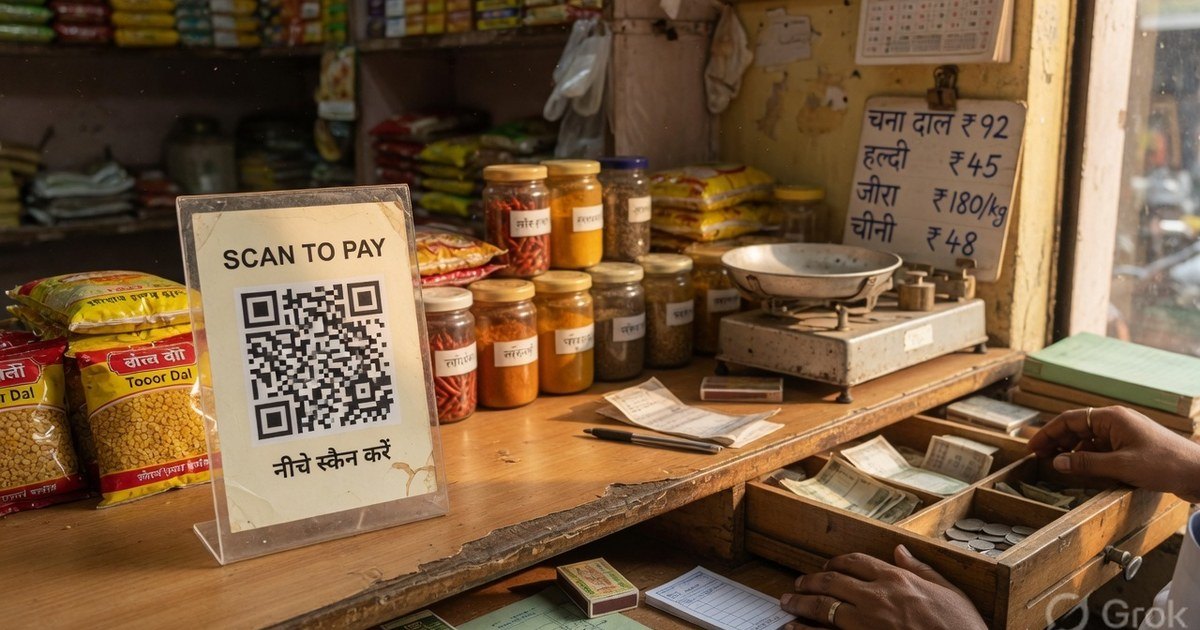
Download the PhonePe Business app, verify the shop mobile number, enter business and bank details, and complete PAN KYC. A virtual merchant QR appears in the app once KYC clears. PhonePe Support states QR activation is free; stickers can be ordered in-app. A QR printed on Pro UPI QR uses the same VPA and works in PhonePe, but it is not PhonePe’s official merchant kit.
Last reviewed 27 August 2026. Confirm current labels and schemes inside the app — PhonePe changes menus without a public changelog.
Official PhonePe QR vs a compatible UPI QR
These two things are easy to mix up, and they should not compete in search results as if they were the same product.
| Official PhonePe Business QR | Compatible UPI QR from this site | |
|---|---|---|
| How you get it | After KYC inside PhonePe Business | Paste your existing VPA into the PhonePe QR generator |
| What it encodes | Your PhonePe merchant VPA (often @ybl, @ibl, or @axl) |
The same upi://pay VPA you type |
| Who can pay | Any UPI app — UPI is interoperable | Any UPI app |
| Dashboard, staff logins, settlements | Yes, in PhonePe Business | No — look at your bank SMS / passbook |
| Soundbox pairing | PhonePe SmartSpeaker programmes | Not paired; use in-app voice alerts or a provider box |
| Design control | PhonePe-branded kit if you order from them | You choose size, template, and reprint |
If you want PhonePe’s settlement dashboard and official standee, complete Business KYC. If you already have a working VPA and only need a clean counter print today, generate a compatible poster and test-scan it.
Create a PhonePe-compatible QR standee →
Virtual QR vs physical standee
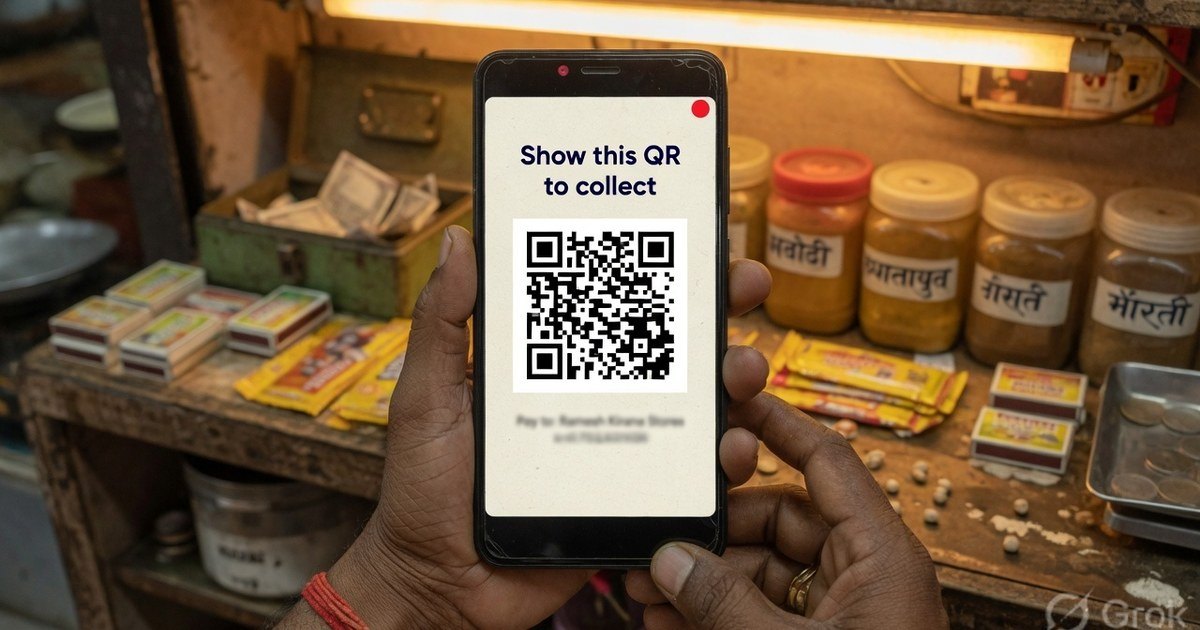
Virtual QR is the code PhonePe shows in the Business app as soon as the merchant profile is live. Use it to collect while you wait for print, on a delivery run, or as a backup when the standee is damaged.
Physical QR is a sticker or acrylic standee that stays on the counter. PhonePe’s Play Store listing says you can order free QR stickers for delivery. You can also print the same VPA yourself in minutes.
| Virtual (in-app) | Physical (sticker / standee) | |
|---|---|---|
| Available | After KYC | After you order or print |
| Best for | Testing, temporary counters, riders | Fixed billing desk |
| Failure mode | Dead phone, stolen phone, dim screen | Sticker swap, glare, faded ink |
Keep one of each. If someone pastes a fake sticker over your standee, the virtual QR on your phone is the check.
Register and activate PhonePe Business
Menu names move between app versions. The sequence does not.
- Install PhonePe Business from Google Play or the App Store — not the consumer PhonePe app, and not an APK from a sales agent.
- Enter the mobile number that should own the merchant profile. Verify the OTP. Prefer the number already linked to the settlement bank account.
- Enter business name, category, and address as they should appear to customers.
- Link the savings or current account that should receive settlements. Keep the account number and IFSC ready. A cancelled cheque or bank app screenshot helps if the app asks for proof.
- Complete KYC (PAN is the usual first gate; Aadhaar is commonly used for identity and address). PhonePe will try the Central KYC registry (CKYCR) before asking for extra papers.
- When the profile is active, open the QR section and test-scan with a second phone. Confirm the payee name. Send ₹1 to yourself if you have a second VPA, or ask a colleague.
Shop-front agents who demand cash to “activate the QR” are not following PhonePe’s published position. In July 2026 PhonePe Support stated there are no charges or fees for activating the PhonePe Business QR code.
KYC documents by entity type
What the in-app flow asks a kirana owner is shorter than what PhonePe’s merchant-profiling PDF requires for companies. Use the table as a packing list, then follow whatever the app actually requests.
| Entity | Typical documents | Notes |
|---|---|---|
| Sole proprietor / shop | PAN (or Form 60), Aadhaar or other officially valid address proof, bank account | GST or Udyam is not mandatory below the GST threshold. Two business proofs (Udyam, Shop Act licence, GSTIN, utility bill) may be asked if CKYCR is empty. |
| Partnership / LLP / company | Entity PAN, certificate of incorporation / partnership deed, GST if registered, bank proof in the entity name, PAN/Aadhaar of authorised signatories, beneficial-owner details | PhonePe’s profiling guidelines follow RBI beneficial-owner thresholds (over 10% for companies/LLPs). Video KYC (V-CIP) or face-to-face CDD may apply. |
| Trust / society | Registration certificate, PAN, bank proof, authorised signatory KYC | Donation desks should print the trust’s legal name as payee. |
GST registration is a tax question, not a UPI question. You can accept UPI below the GST threshold; crossing it is a separate compliance job.
Source: PhonePe Merchant Profiling Guidelines (PDF).
Order, track, replace a physical PhonePe QR
Once the digital profile is live:
- Open PhonePe Business and look for QR codes / Manage QR (wording varies).
- Choose request standee or order stickers. The Play Store listing for PhonePe Business (reviewed July 2026) says merchants can order free QR stickers for delivery across India.
- Enter a shipping address that matches KYC. Merchants who type a different address often see “address is not valid”.
- Watch in-app status and SMS. Delivery is commonly a week or more; treat that as typical, not a service-level agreement.
- On arrival, scan before you display. Check payee name and VPA. Put the old code in a bin the same day.
Replacement. If the board fades, cracks, or you suspect a sticker swap, order or print a new copy and retire the old one immediately. Do not tape a new VPA over an old QR — cameras still read the code underneath.
If you need a counter print today, copy the merchant VPA from the app and use the PhonePe QR generator or an A4 sticker sheet. Printing it yourself does not cancel the official PhonePe QR; both can encode the same VPA.
Step-by-step sizing and paper: create and print a UPI QR standee.
Charges, MDR, and what is actually free
- QR activation: PhonePe Support (July 2026) — no fee to activate the Business QR.
- Official stickers: Play Store listing describes free QR sticker orders. Confirm in-app before you assume a particular standee size is free.
- Bank-to-bank UPI into your account: 0% MDR.
- RuPay credit card on UPI: not the same as bank UPI. Transactions above ₹2,000 may carry interchange under NPCI rules. Under ₹2,000 is typically treated as zero-MDR for this rail. See RuPay CC on UPI MDR.
- Soundbox / SmartSpeaker: a separate hardware programme. Price and rental change by city and scheme — read the in-app offer, do not rely on a blog number. How the speaker works: UPI soundbox safety. Free phone alerts: voice announcements without a box.
If a visiting agent wants cash, a “security deposit”, or your UPI PIN to activate a QR, stop. PIN and OTP stay on your device.
Print a compatible standee in 30 seconds
You do not need to wait for courier stickers to start collecting.
- Copy the UPI ID from PhonePe Business (or from consumer PhonePe if you are not using a merchant account).
- Open the PhonePe QR generator.
- Enter payee name exactly as the bank registered it.
- Leave amount blank for a shop counter; lock an amount only for a fixed SKU or ticket.
- Download PNG or PDF, print on 300 GSM matte stock, insert in an acrylic T-stand.
Need many copies for parcels or tables? Use the sticker sheet generator.
After the QR is live
- Test-scan from PhonePe and one other app (GPay or BHIM). Interoperability is the point of UPI; if only one app reads it, the print is bad.
- Enable voice alerts in PhonePe Business if you will keep the phone at the desk.
- Read prevent QR tampering before you leave a standee unattended.
- Bookmark the UPI error code resolver for “NPCI returned error” at the counter.
- If you are still choosing an app ecosystem, see PhonePe vs Paytm vs GPay.
Frequently asked questions
Q1. Do I need GST to get a PhonePe Business QR?
No. GST is required when your turnover crosses the GST threshold, not to print a UPI QR. PhonePe’s in-app KYC for a small sole proprietor is usually PAN, address proof, and a bank account. GSTIN or Udyam can be added later if the app asks or if you need them for other reasons.
Q2. Can a Google Pay customer pay a PhonePe Business QR?
Yes. A standard UPI QR is interoperable. The customer’s app talks to NPCI, not to a PhonePe-only rail. The same is true in reverse for a GPay merchant QR.
Q3. Is the QR I print here an official PhonePe merchant QR?
No. It is a compatible upi://pay QR that credits the VPA you enter. You do not get PhonePe Business analytics, staff roles, or official soundbox pairing from that print. Use it when you already have a VPA and need a counter poster.
Q4. How long does the physical PhonePe standee take?
Treat “about a week, sometimes longer” as typical, not guaranteed. Order from the QR section of PhonePe Business with the KYC address. If you need a desk code today, print one yourself from the same VPA.
Q5. Is PhonePe Business QR activation free?
PhonePe Support has stated that activating the Business QR is free. Do not pay a field agent a cash “activation fee”. Soundbox hardware, if you choose it, is a separate paid add-on — confirm the current offer in the app.
Q6. Virtual QR or physical standee — which should I use?
Use virtual QR the day KYC clears, and whenever the phone is the counter. Use a physical standee for a fixed desk so customers are not waiting on your screen brightness. Keep both; they can share one VPA.
Q7. What if KYC is stuck?
Check that PAN, name, and bank account belong to the same person or entity. Mismatched spellings and an address that is not on the KYC papers are the usual blocks. For companies, expect entity documents and beneficial-owner details per PhonePe’s profiling PDF. Use in-app help; do not share OTPs with anyone who calls you.
Sources
- PhonePe Business on Google Play — QR sticker ordering, merchant app scope (listing reviewed July 2026).
- PhonePe Support, July 2026 — QR activation has no fee.
- PhonePe Merchant Profiling Guidelines (PDF) — KYC / KYM by entity type, CKYCR, V-CIP.
- PhonePe: set up UPI for business.
- NPCI UPI interoperability: a Bharat QR / UPI merchant code is payable from any member app.
App menus, delivery times, and soundbox rents change. Re-check the Business app before you print a thousand stickers.
Kunal Siyag
Founder, Pro UPI QR
Founder of Pro UPI QR. Builds the generators and calculators, writes the merchant guides, and cites NPCI, RBI, and bank sources instead of inventing a research team.
Related Articles
PhonePe QR Sticker: Print Free or Order
Print a PhonePe-compatible UPI sticker at home for free, or order the official PhonePe Business sticker. Sizes, vinyl vs paper, and when each option makes sense.
P2M Meaning in Banking and UPI Payments
P2M is person-to-merchant UPI. P2P is person-to-person. Learn the difference, refund TAT, MDR, and when a shop should use a merchant VPA instead of a personal UPI ID.
How to Set Up and Activate Google Pay for Business
Register Google Pay for Business, complete PAN KYC, download the merchant QR, and learn how an official GPay QR differs from a compatible UPI print.
Related tools
Four siblings in this topic — the full inventory lives on the hub.
PhonePe vs Paytm vs GPay
Interoperability, soundboxes, dashboards, and what actually differs.
PhonePe-compatible QR
Print a PhonePe-styled standee for any VPA.
Google Pay-compatible QR
GPay-friendly poster customers can scan from any UPI app.
Paytm-compatible QR
Paytm-styled counter QR for shops and local businesses.